



By: Stellarinfo
One of the most frustrating problems Windows 11 users run into is the Blue Screen of Death (BSOD). It appears when the operating system hits a serious error and cannot keep running safely. Your computer may restart, freeze, or show a blue screen with an error message. The problem looks severe, but several troubleshooting steps can resolve many BSOD errors.
In this guide, we cover the most common BSOD errors on Windows 11 and how you can fix them to get your computer running normally again.
What Causes the Windows 11 BSOD Error?
Several hardware and software problems can trigger a blue screen error. Identifying the underlying cause can help you choose the right solution.
Common causes include:
- Corrupted system files: Damaged Windows files can interfere with essential system processes.
- Outdated drivers: Incompatible or outdated device drivers may cause system instability.
- Hardware problems: Faulty RAM, storage drives, or other components can trigger critical errors.
- Windows updates: Certain updates may introduce compatibility issues.
- Malware infections: Malicious software can damage files or disrupt system operations.
- Disk errors: Problems with your hard drive or SSD can prevent Windows from accessing important data.
Before attempting major repairs, consider backing up your important files whenever possible.
Step 1: Restart Your Computer
In some instances, the BSOD is caused by a temporary system problem. You may be able to fix the issue by restarting your computer.
After restarting the computer, if Windows restarts normally, save your work and determine if the error occurs again. If the blue screen comes back up again, record the stop code on the screen. These include CRITICAL_PROCESS_DIED, SYSTEM_SERVICE_EXCEPTION and INACCESSIBLE_BOOT_DEVICE.
These codes can be helpful clues in determining the underlying issue.
Step 2: Disconnect External Devices
If you use an external hardware device, there may be compatibility issues. Unplug any peripheral devices, external hard drives, printers, or other equipment that is not in use.
Keep only the essentials connected, such as the keyboard, mouse, and monitor. Restart the computer and see whether Windows runs normally.
If the issue goes away, reconnect each device one by one to determine which one is causing the problem. You can then update its driver or check the manufacturer’s support resources.
Step 3: Start Windows in Safe Mode
Safe Mode loads Windows with a minimal set of drivers and services. This helps show whether a third-party application or driver is responsible for the BSOD.
If you can still reach Windows, go to Settings, select System, then Recovery, and click Restart now under Advanced startup. Choose Troubleshoot, Advanced options, Startup Settings, then Restart. Once the computer restarts, select the Safe Mode option.
If Windows will not start at all, interrupt the startup process to trigger automatic repair, or boot into the recovery environment using Windows recovery media.
After entering Safe Mode, uninstall recently added applications, remove problematic drivers, or revert recent changes. Restart the computer and check whether the problem is resolved.
Step 4: Update or Roll Back Drivers
A lot of Windows crashes can be traced to faulty drivers. Open Device Manager and look for devices marked with a warning symbol.
Right-click the device and select Update driver. You can also download drivers directly from the hardware manufacturer’s official website to make sure they are compatible with your system.
If the BSOD appeared right after a driver update, open the device’s Properties, click the Driver tab, and select Roll Back Driver if the option is available.
Avoid downloading drivers from unknown websites, because they may contain unwanted or malicious software.
Step 5: Repair Corrupted System Files
Windows includes built-in tools that can scan for and repair damaged system files.
Open Terminal or Command Prompt as an administrator and run:
sfc /scannow
Allow the scan to finish. If necessary, run the following command to repair the Windows component store:
DISM /Online /Cleanup-Image /RestoreHealth
After the process completes, restart your computer. These tools can resolve certain system-file problems that contribute to BSOD errors.
Step 6: Check Your Storage Drive
Storage drive errors may cause Windows to crash or become inaccessible. To check for file-system problems, open an administrator Command Prompt and run:
chkdsk C: /scan
If Windows reports errors requiring additional repairs, follow its recommendations. Before performing extensive disk repairs, back up important data if possible, particularly if your drive shows signs of failure.
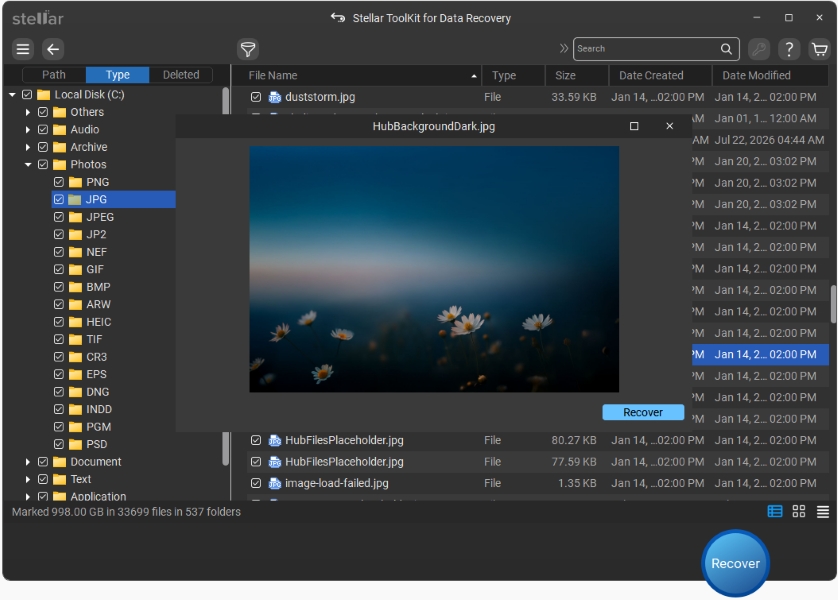
If Windows will not boot and you need to retrieve files from an inaccessible or damaged drive, consider using good data recovery software for Windows. Stellar Data Recovery for Windows is designed to help recover lost or deleted files from supported storage devices. Recovery results depend on the condition of the drive and whether the data has been overwritten.
Step 7: Uninstall Recent Windows Updates
If the BSOD began after installing a Windows update, removing the latest update may help.
Open Settings, navigate to Windows Update, select Update history, and choose Uninstall updates. Select the relevant recent update if Windows allows it, then restart your computer.
If Windows cannot start, access the recovery environment and select Troubleshoot, Advanced options, and Uninstall Updates.
Once the problem is resolved, check for newer updates that may address the compatibility issue.
Step 8: Check Hardware and Consider Recovery Options
If the blue screen continues, run Windows Memory Diagnostic to check for possible RAM problems. You should also review your computer manufacturer’s hardware diagnostics.
Persistent BSOD errors may indicate failing memory, overheating, or a damaged storage device. If hardware failure is suspected, seek professional assistance before the problem worsens.
As a last resort, consider using Windows System Restore or resetting Windows. Back up your files first whenever possible, because some recovery options can remove applications, settings, or personal data.
Keeping Your System Stable After a BSOD
Windows 11 BSOD errors can result from driver conflicts, corrupted system files, storage problems, or faulty hardware. By restarting your computer, testing external devices, repairing system files, and checking your storage drive, you can often identify and resolve the issue.
If the blue screen prevents Windows from starting and important files are inaccessible, prioritize data protection before attempting major repairs. A careful troubleshooting approach can help restore system stability while reducing the risk of permanent data loss.