

By: Zedx Miller
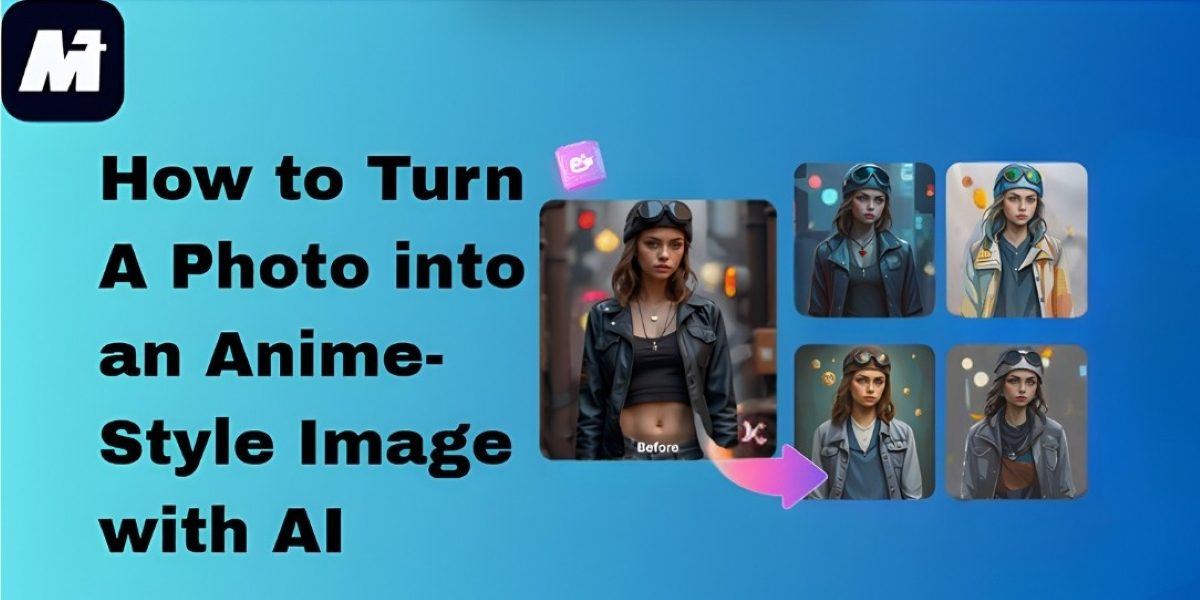
How to Turn A Photo into an Anime-Style Image with AI
I was looking through a few old photos the other day and noticed how many people around me have switched their profile pictures to some kind of anime version. Not just the unmistakable “filter style,” but the type that actually looks like someone drew it. For a while, I assumed these were commissions because that’s what people used to do, but most of them were generated with an image-to-anime AI tool.
What surprised me wasn’t the trend itself, but how little effort it actually takes now. I tried a couple of tools out of curiosity—one of them was Wondershare Media.io—and the process felt almost too simple. You upload a regular photo, write a quick note about the style you’re imagining, and the system turns it into an anime-style illustration. No software installation, nothing complicated. It’s the kind of thing you can do during a break, which probably explains why the trend spread so fast.
I’m putting the steps together below. Media.io ended up being the one I used more than once, so that’s the example I stuck with.
What Is Image-to-Anime AI & Why Is It So Popular?
Image-to-anime AI is a type of image-to-image AI that takes an existing photo—usually a portrait—and redraws it in a stylized anime style. Instead of guessing from text alone, the AI uses your uploaded photo as the visual foundation. Then, guided by your written prompt, it converts the original image to a new illustration while preserving the layout, pose, and identity.
This blend of “image + description” offers much more precision than traditional text-only AI tools. It gives you creative control while avoiding unexpected or inaccurate results. Many users rely on it to:
- Turn a selfie into a soft pastel anime portrait
- Generate manga-style black-and-white line art
- Create a game-like 3D anime character
- Convert a landscape photo into a watercolor anime scene
- Give product photos a creative campaign-ready look
Unlike simple filters, this method truly redraws the visual. It’s closer to having a digital artist illustrate your picture—only much faster, and accessible to everyone. Now, let’s explore why Media.io is one of the best platforms to create anime images instantly.
How Media.io Stands Out as an Image-to-Anime Tool
Media.io AI Image to Image offers a complete environment for transforming images using AI. Instead of being just another standalone anime tool, it’s part of a larger creative ecosystem powered by multimodal AI models. This makes it far more flexible and powerful than basic “photo filters.”
Here’s why creators prefer Media.io:
1. Accurate Anime Rendering With Prompt Control
Simply upload your picture, describe the anime style you want, and let the system redraw it. Media.io is good at keeping facial structure intact while enhancing details such as lighting, shading, and anime-style features. You can also experiment with prompts to convert a photo to an oil painting, generate manga line art, or turn a photo into artwork.
2. Works for Many Styles Without Manual Settings
Media.io doesn’t require complicated model selection. The prompt does all the work. You can ask for soft 2D anime, stylized digital painting, Ghibli-like scenes, chibi characters, cyberpunk themes, or anything else. The AI adapts naturally.
3. Part of a Larger Creative Toolkit
After generating your anime image, you can enhance it using other Media tools. For example:
- Upscale to HD using image enhancement
- Remove or replace the background
- Expand the canvas for posters
- Convert the anime image into pixel art
- Restyle it using the AI image generator
This makes Media.io extremely useful for personal branding, design projects, and marketing.
4. Inspiration Hub
Media.io’s Explore page works like a live inspiration feed. You’ll find user-submitted videos and ready-to-use templates, all of which can be regenerated with a single click. As trends shift, new themed sections appear, making it easy to follow what’s currently gaining attention.
5. Simple, Fast, and Beginner-Friendly
The image-to-image feature runs in your browser and requires no setup. Even first-time users can turn a photo into anime in under a minute. You can also batch-upload up to nine images, making it efficient for creators who produce a series of characters or assets.
How to Turn an Image into Anime with Media.io (Step-by-Step Guide)
Feeling ready to try it? Here’s the complete tutorial.
Step 1. Upload Your Photo
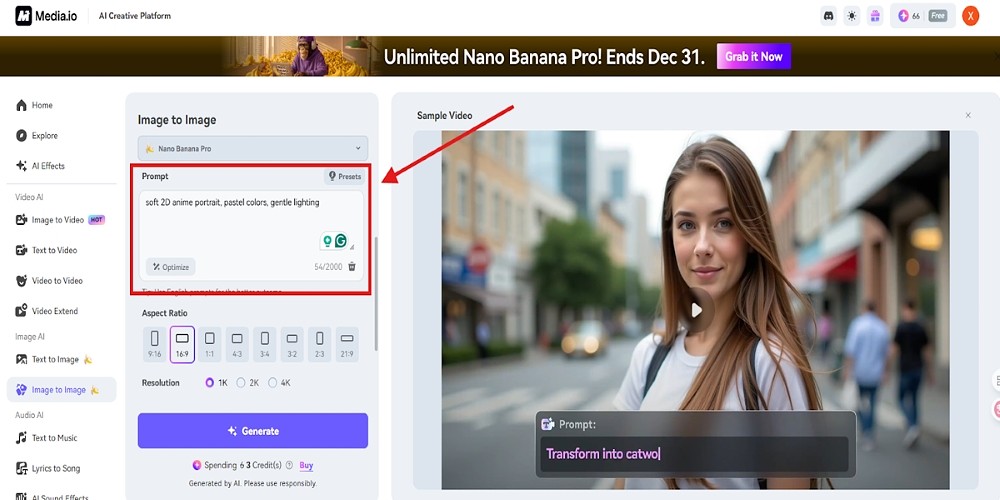
Photo Courtesy: Media.io
Go to Media.io’s Image to Anime tool and upload a JPG, PNG, or JPEG file. You can also bring in multiple images if you’re working on character sets or visual collections. After the upload, adjust the crop or framing so the subject is centered, which helps the AI keep proportions stable during the transformation.
Step 2. Describe the Anime Style You Want
This step controls the output. In the prompt box, describe the visual style as clearly as you can. Here are a few examples:
- “soft 2D anime portrait, pastel colors, gentle lighting”
- “manga line art with bold outlines”
- “3D anime character, glossy shading”
- “kawaii chibi, big eyes, round face”
- “Studio Ghibli watercolor atmosphere”
Your prompt is the only input that determines the anime style, so don’t hesitate to experiment. You can also use this method to convert an image into one in different artistic directions, not just anime.
Step 3. Generate and Download Your Anime Image
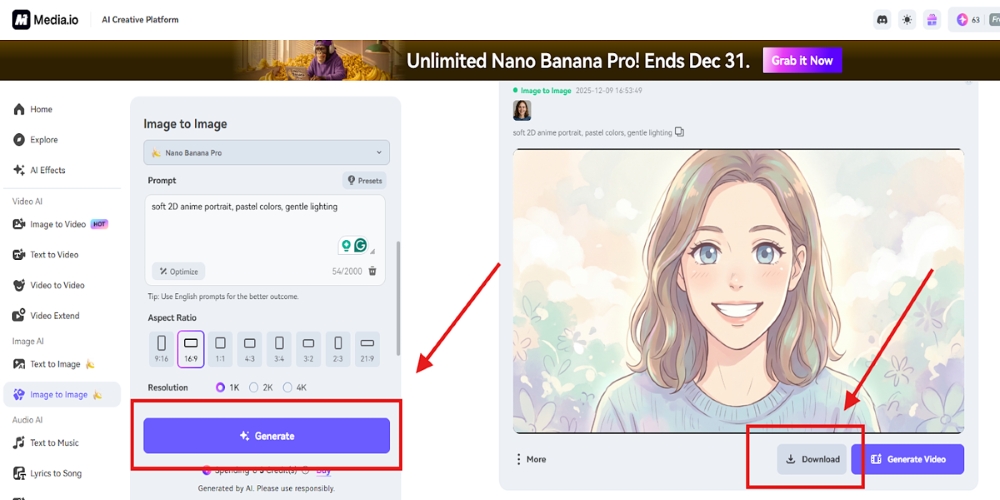
Photo Courtesy: Media.io
Click Generate, and the system will redraw your photo in just a few seconds. When the anime version appears, download it instantly or continue editing. If you want a more stylized result, you can try additional prompts, adjust lighting descriptions, or use Media.io’s AI change photo tools to refine the final look.
Final Thoughts — Start Turning Your Photos into Anime Today
Turning a regular photo into an anime-style image no longer requires any drawing skills. A single upload is usually enough for the AI to generate a clean, stylized version of your picture, which makes it handy for avatars or quick visual ideas.
What helps with Media.io is that you can adjust the result right after it’s generated—sharpen it, change the look slightly, or try another variation without leaving the page.
If you’re curious how your own photo would turn out, test one. Upload it, type a short note about the style you want, and let the tool create the anime version.