

By: Muneed Seo
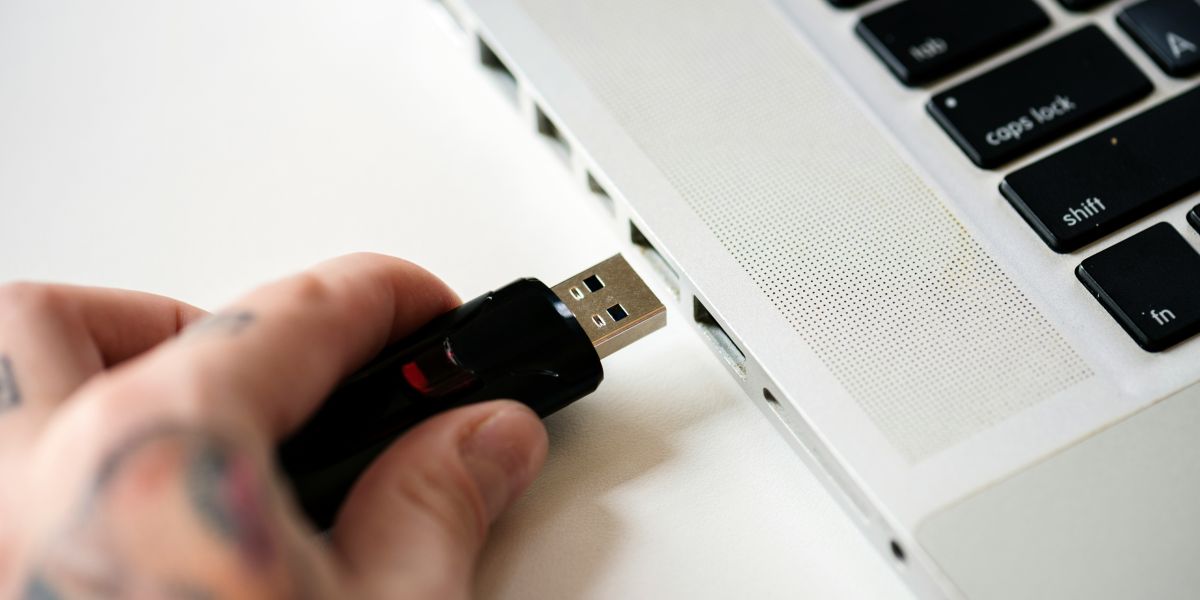
You plug in your USB drive, drag a file over, and instantly get the message: “The disk is write-protected. Remove the write-protection or use another disk.” No copy. No format. No save. Just frustration. A quick search for how to remove write protection on a USB drive only makes things worse, throwing registry hacks, DiskPart commands, and conflicting advice at you with no clear starting point.
This error is one of the most common and most misunderstood USB problems. Whether you’re trying to save a document, back up photos, or format a stubborn stick, write protection turns a simple task into a dead end. The core issue? Most guides treat this like a guessing game.
But write protection isn’t random; it’s a symptom. It can be physical, software-based, permission-related, or a sign of hardware failure. Each cause requires a different fix. This guide replaces guesswork with diagnosis.
Instead of trying everything, you’ll follow a logical roadmap to identify why your USB flash drive is locked, then apply the correct solution. If you want to remove write protection on a USB drive safely and permanently, follow this process.
The Golden Rule: Before You Do ANYTHING Else
Before making any changes to your USB drive, follow the golden rule: always back up your data first. Then, you can safely proceed to remove write protection on a USB drive.
Step 0: Safeguard Your Data (If Possible)
Before attempting any fix, try copying any important files from the USB drive to your computer or another storage device. Some solutions, especially those involving formatting or partition reformatting, will permanently erase data.
Be realistic
If the drive is fully write-protected, copying may fail. That’s exactly why proper diagnosis matters. But if the drive still allows reads, take advantage of it now. Once recovery steps begin, rollback may not be possible. This single precaution prevents a repair task from becoming a data-loss incident.
The Diagnostic Flowchart: Find Your Fix
Now, let’s get into the diagnostic fix guide with multiple steps that you need to try:
The Troubleshooter’s Path: Start Here, Not With Random Commands
This is the core of the guide. Follow these steps in order. Each one rules out an entire class of causes.
Diagnostic Step 1: The Physical Check
Action:
Examine your USB drive closely. Look for a small physical lock switch, usually on the side. Brands like SanDisk, Kingston, and older USB flash drives often include a tiny slider that toggles write protection at the hardware level.
Instruction:
If you find a switch, slide it to the unlocked position, reinsert the drive, and try again. If this works, you’re done. If no switch exists, or unlocking doesn’t help, move on. Software solutions cannot override a physical lock.
Diagnostic Step 2: Try a Different Environment (Rules Out Local PC Issues)
Action:
Plug the USB drive into:
- A different USB port on the same computer
- A completely different computer
Interpretation:
- Works elsewhere: Your original system has a configuration, policy, or driver issue.
- Fails everywhere: The problem is on the USB drive itself. Proceed.
This step prevents you from fixing the wrong machine.
Diagnostic Step 3: Check Drive Properties & Permissions (Software Lock)
Action (Windows):
- Open File Explorer
- Right-click the USB drive > Properties
- Go to the Security tab
- Check your user account’s permissions.
Ensure write access is allowed.
Interpretation:
Incorrect permissions can trigger write-protection errors even when the drive is healthy. Fixing permissions here often resolves the issue instantly. If permissions are correct, continue.
Diagnostic Step 4: Scan for File System Errors (Logical Corruption)
Action:
Use Windows’ built-in file system checker.
- Open Command Prompt as Administrator
- Run: “chkdsk X: /f” (Replace X with your USB drive letter.)
Interpretation:
Logical file system corruption can force Windows to mount a drive as read-only to prevent further damage. chkdsk repairs these inconsistencies. If errors are fixed and write access returns, you’re done. If not, escalate.
Diagnostic Step 5: Registry & Group Policy Check (Advanced Software Lock)
Action:
Check whether Windows is enforcing removable storage write protection via “Group Policy Management Editor”:
- Registry keys
- Group Policy settings
These controls are commonly used in corporate or shared environments.
Important Warning:
Editing the registry incorrectly can damage your Windows installation. This step is only for advanced users who know how to back up and revert changes. If protection is enforced here, removing it restores write access. If not, the issue goes deeper.
Diagnostic Step 6: Drive Is in Permanent Read-Only Mode (Firmware or Physical Failure)
Interpretation:
If none of the above steps work, the USB controller may have locked the drive into read-only mode. This often happens when the drive detects an internal failure and switches to data-preservation mode. At this point, the problem is no longer user error; it’s structural.
The Solution Hub: Matching the Fix to the Diagnosis
After you complete the diagnosis, proceed to the appropriate fixes to resolve the issue without confusion.
Your Diagnosis Is Clear. Now, Here’s Your Cure.
This section translates diagnosis into action.
For Physical Switch or Port Issues (Steps 1 & 2)
The fix is straightforward:
- Unlock the switch
- Use a different port or system
No software required.
For Permission or File System Issues (Steps 3 & 4)
If permissions were incorrect, correcting them restores write access. If chkdsk repaired file system errors, the drive should now accept writes normally. Always test by creating and deleting a small file.
For Deep Software & Formatting Issues (Step 5 & Beyond)
This is where most users get stuck. At this stage, the drive often needs:
- Write protection flags removed
- Partition tables rebuilt
- A forced format
Windows Disk Management and DiskPart can do this, but they’re command-based, unforgiving, and frequently fail on stubborn drives.
The Safer, More Powerful Solution: 4DDiG Partition Manager
4DDiG Partition Manager is designed for low-level disk operations through a clean, graphical interface with no risky commands required.
Why it fits here perfectly:
- Handles stubborn write-protected drives
- Reduces human error
- Designed for exactly this escalation point
Key Features That Matter
Force Format Function
Can format drives even when Windows refuses.
Partition Management
Deletes and recreates partitions, removing software-level write protection at the root.
File System Repair
Fixes corruption that triggers read-only states.
Simple Workflow
After diagnosing a deep software issue:
1. Launch 4DDiG Partition Manager after downloading and installing it, then select “Partition Management” and click on the “USB” to select it.
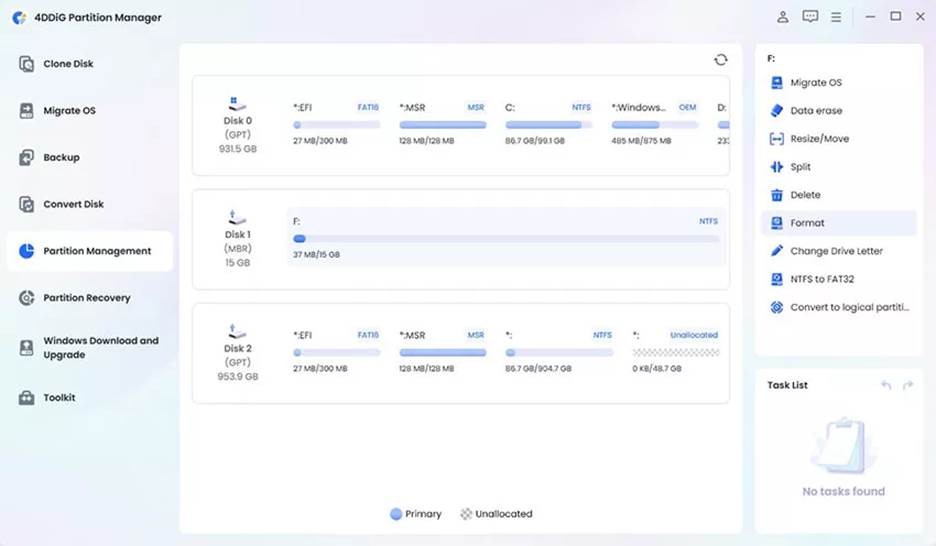
Photo Courtesy: 4DDiG/Tenorshare
2. Click “Format” to wipe its partition table and then create the new partition table with the pop-up window. Click “OK” to proceed and “Yes” to confirm.”
3. Click “Execute Tasks” then “OK” and wait as 4DDiG formats your USB. Once the process is successfully completed, click “Done”.
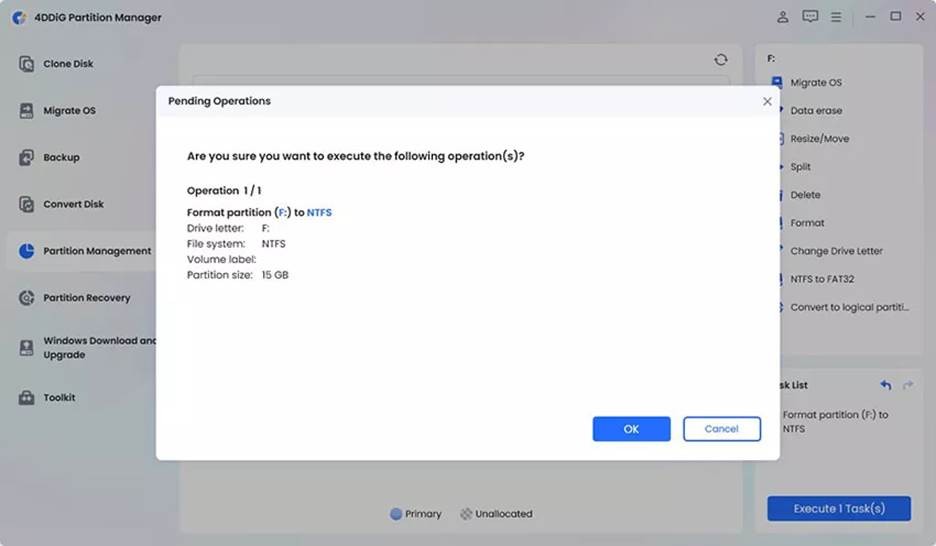
Photo Courtesy: 4DDiG/Tenorshare
All done in a few clicks, no CMD, no registry edits, no guesswork.
Final Verdict & When to Give Up?
By following this diagnostic guide, many common write protection issues can be resolved. Physical switches, permission errors, and file system corruption account for most cases. For stubborn software-level locks, tools such as 4DDiG Partition Manager offer a safe and effective solution.
If the drive has entered permanent read-only mode due to hardware failure, no software can fix it. At that point, replacement is the only option.
Tired of error messages? Download 4DDiG Partition Manager to safely and powerfully handle the complex formatting and partition tasks that often lock your USB drives.
FAQ
Q: How do I remove write protection on a USB flash drive that has no switch?
Follow the diagnostic steps: test on another PC, check permissions, run chkdsk, then use a partition manager if needed.
Q: I need to remove write protection on the USB pen drive to format it, but Windows won’t let me.
This usually indicates deep software-level protection. A dedicated partition manager can force formatting safely.
Q: How to remove the write protection on a USB drive using CMD?
DiskPart can sometimes work, but it’s risky. One wrong command can erase the wrong drive. GUI tools are safer for most users.