


Knowing how to delete an empty page in Word sounds like it should be simple. In reality, it’s one of those small issues that can waste a surprising amount of time. I’ve opened documents that looked finished, ready to send, only to notice an extra blank page at the end. Pressing Delete didn’t help. Backspace didn’t either. Sometimes removing the page caused text to shift or formatting to break. After dealing with this repeatedly, I stopped guessing and started understanding why blank pages appear and which methods tend to work more consistently without unintentionally creating new problems.
Why Blank Pages Appear and Are Difficult to Delete?
Blank pages in Word are often the result of formatting elements that aren’t visible by default. Extra paragraph marks are a common cause. Every time you press Enter, Word inserts a paragraph marker, and too many of them can push content onto a new page.
Manual page breaks and section breaks also create blank pages. These breaks are often added intentionally during formatting, but once the document changes, they can end up sitting alone on an empty page. Tables can also cause trouble. If a table reaches the bottom margin, Word may force a new page even if there’s no visible content there.
Another reason blank pages are hard to remove is Word’s layout behavior. Word tries to protect document structure. When you delete something near the end, Word may keep spacing intact instead of removing the page. That’s why many people ask how can I delete blank page in Word and still feel stuck after trying basic fixes.
Common causes include:
- Extra paragraph marks created when Enter is pressed repeatedly
- Manual page breaks or section breaks left in the document
- Tables reaching the bottom margin, which can push content to another page
- Word preserving layout spacing, which may prevent the page from disappearing
How To Remove Blank Page in Word
There isn’t just one solution. I usually start with the simplest option and move to more direct methods if the issue continues.
Method 1: Use UPDF On PC To Remove The Blank Page
When formatting matters or the Word file behaves unpredictably, I convert the document to PDF and handle the issue there. This can help avoid Word’s automatic layout adjustments.
UPDF lets me delete pages directly without affecting text flow or spacing. Once the blank page is gone, the document often stays close to the intended layout.
Here’s how I do it:
- Open UPDF on the computer.
- Convert the Word document into a PDF.
- Open the PDF file in UPDF.
- Open the page organization tool.
- Select the blank page.
- Delete the page.
- Save the document.
This approach can be helpful, especially when the blank page is caused by hidden breaks or tables that Word may not adjust easily.
Method 2: Use UPDF On Mobile
When I’m not at my desk, I use UPDF on my phone.
- Open UPDF on the mobile device.
- Import the PDF version of the document.
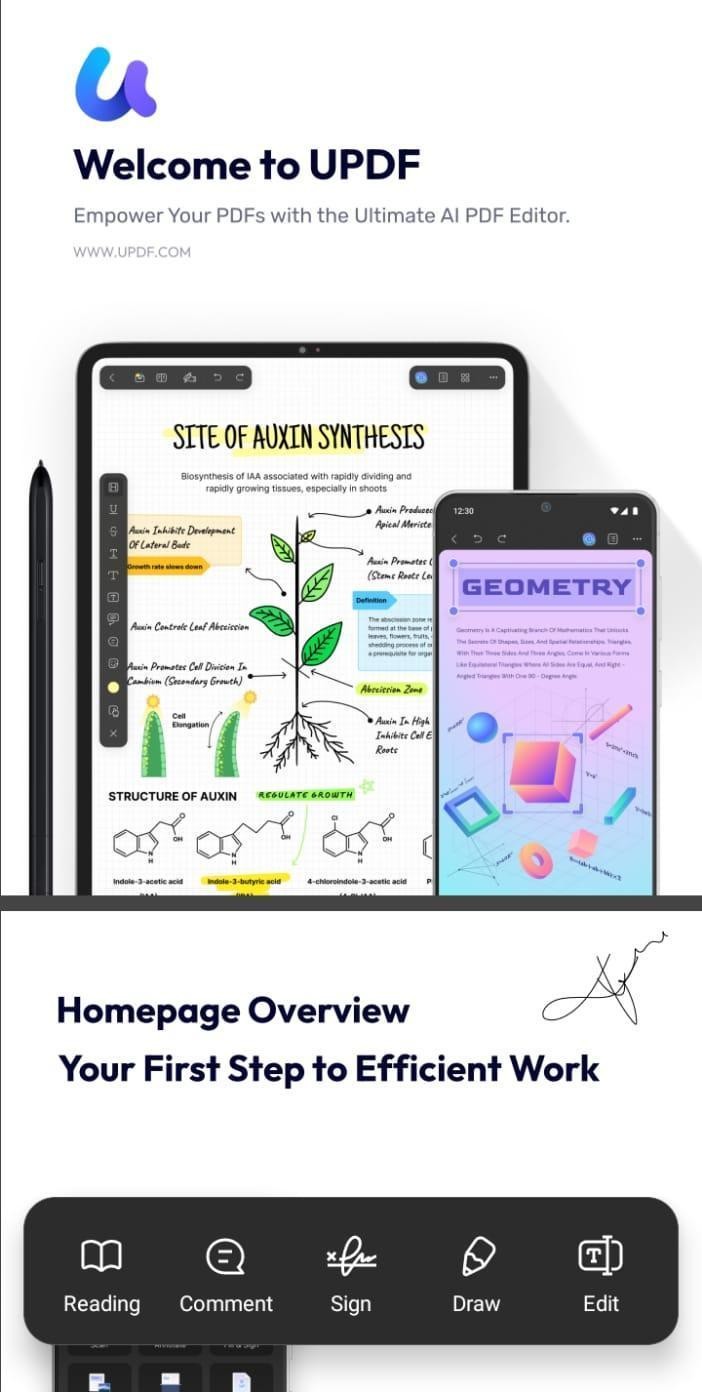
Photo Courtesy: UPDF (Open-pdf-in-phone)
- Open page organization.
- Select the empty page.
- Delete and save.
It’s a convenient option in many situations and avoids reopening Word entirely.
Method 3: Delete Using Backspace Carefully
If I decide to work directly in Word, I start with the simplest method.
- Place the cursor at the end of the document.
- Press Backspace slowly.
- Watch whether content moves.
This can sometimes remove the blank page, but it may also affect spacing above. I only use this when the document layout is simple.
Method 4: Show Paragraph Marks
This is often considered one of the more reliable Word-based methods.
- Press Ctrl + Shift + 8 to show paragraph marks.
- Look for extra paragraph symbols on the blank page.
- Select and delete them
Paragraph marks reveal what Word is actually responding to. Removing them can resolve the issue in many cases.
Method 5: Use The Navigation Pane
The Navigation Pane helps locate empty pages quickly in longer documents.
- Open the View tab.
- Enable Navigation Pane.
- Click through pages to find the blank one.
- Click into the page and press Delete.
This is helpful when a document has many sections.
Method 6: Ctrl + Backspace Shortcut
Sometimes the blank page is caused by a large block of empty space.
- Place the cursor at the start of the blank page.
- Press Ctrl + Backspace.
This removes content in larger chunks and may clear the page faster than regular Backspace in some situations.
Method 7: Adjust Line Spacing
Excessive spacing can force Word to create a new page.
- Select the empty space.
- Set line spacing to Single.
- Reduce spacing before and after paragraphs.
This can be useful when blank pages appear in the middle of a document.
Method 8: Use Ctrl + G To Select The Page
This method lets Word select the entire page at once.
- Press Ctrl + G.
- Type \page and press Enter.
- Close the dialog box.
- Press Delete.
If Word allows the page to be selected, this may remove it cleanly.
Method 9: Switch To Outline View
Outline View makes structural elements easier to see.
- Go to the View tab.
- Switch to Outline View.
- Look for extra breaks or empty headings.
- Remove the cause of the blank page.
- Exit Outline View.
This is helpful for reports and structured documents.
Bonus Tip: Continue Editing With UPDF
After deleting blank pages using UPDF, I often continue working in PDF format. This can help avoid Word’s automatic formatting adjustments.
UPDF allows me to edit text, adjust layout, and manage pages directly. I can annotate, reorganize, compress files, or make small text corrections without worrying about content shifting unexpectedly.
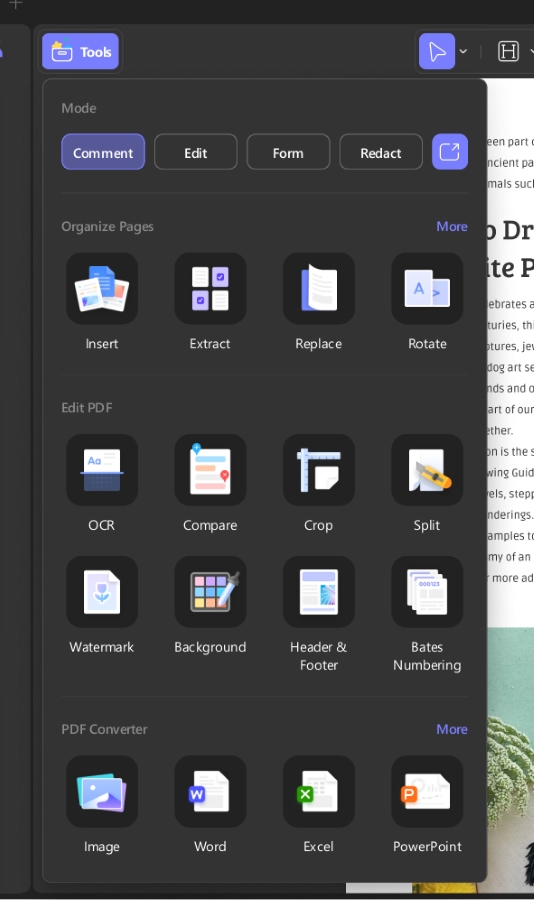
Photo Courtesy: UPDF (updf-other-tools)
For documents that are close to final, working in PDF may help save time and reduce the chance of formatting changes.
Summary
Learning how to delete an empty page in Word isn’t about one trick. It’s about understanding why blank pages appear and choosing the right method for the situation. Word-based fixes work in many cases, but they can be unpredictable. When formatting matters, converting the file to PDF and removing the page with UPDF can sometimes be a cleaner option. Instead of spending too much time troubleshooting Word, I fix the problem and move on.